

Layout editor
Arrange cards, build several dashboards, and choose what opens on computers and phones.
Supported hardware
Every inverter, dongle, serial protocol and wired BMS profile that comes with Epilykos.
Cards and the showcase
Every card type, what it needs, and how to try them with made-up readings.
To change what's on your dashboard, press Edit layout on the dashboard or go to /editor (you'll
need to be signed in). Everything you change is saved as you go, and Done takes you back to the
dashboard.
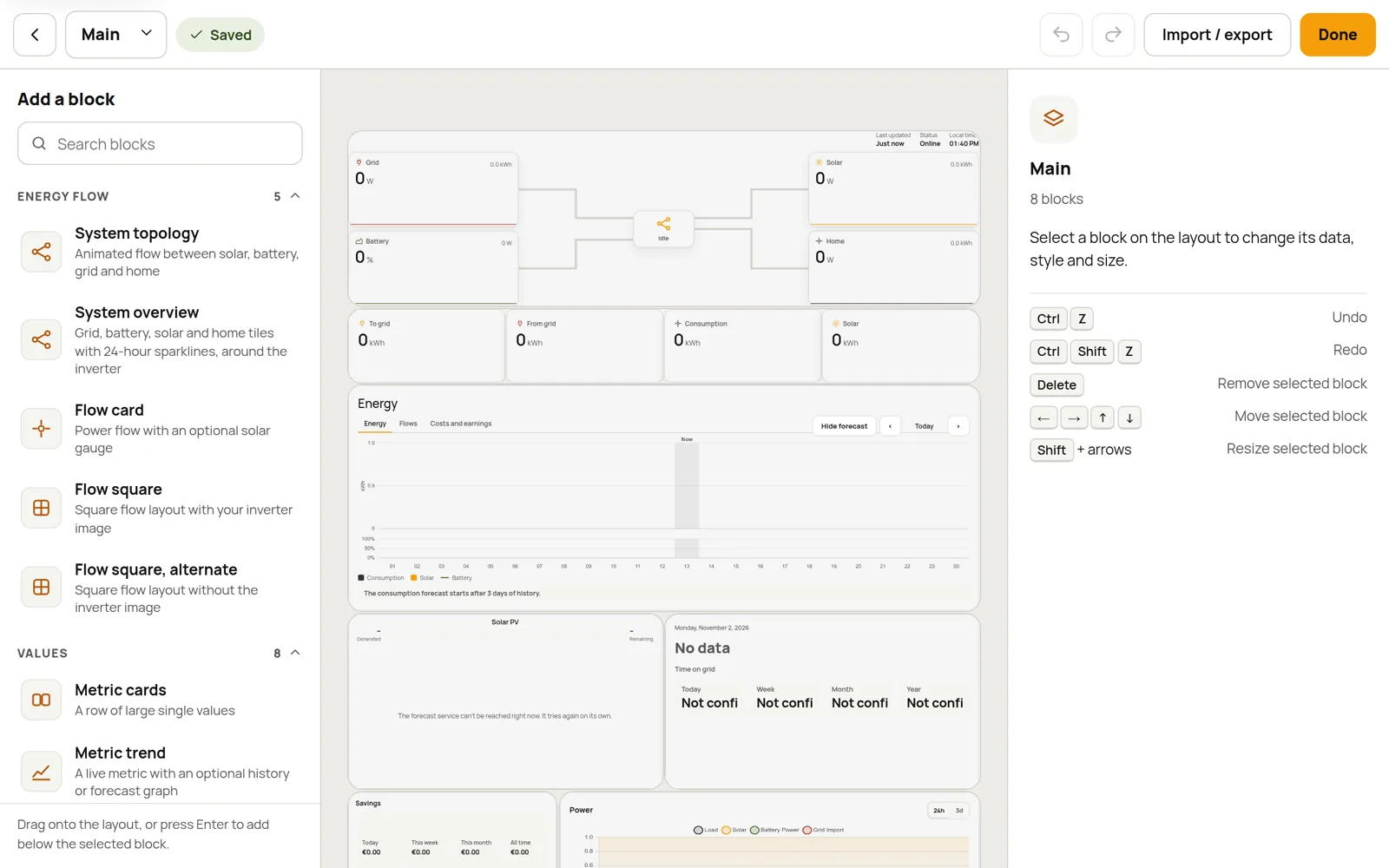
Add and arrange cards
- The block library is on the left. Search it, then drag a block onto the layout. Or select a card on the layout and press Enter on a library entry to drop the new one just below it.
- Move a card by dragging it, or select it and use the arrow keys. The layout is a grid 12 columns wide.
- Resize a card by dragging any edge or corner, or select it and press Shift + an arrow key.
- Duplicate a card with the copy icon in its toolbar, and press Delete to remove the selected card.
- Made a mistake? Undo with Ctrl + Z and redo with Ctrl + Shift + Z.
Card settings
Select a card to see its settings, which are split over three tabs:
| Tab | What it's for |
|---|---|
| Data | Which metrics the card shows. |
| Style | Colours, transparency, font size and the card's own display options. |
| Layout | How big it is on the grid. |
You can use the same type of card as many times as you like, each with its own metrics. Most energy cards fall back on your metric roles when you don't pick metrics yourself.
Cards and the showcase describes every card in the library and what it needs.
Several dashboards
The dashboard menu at the top left lists all your dashboards. From there you can create a New dashboard, Rename… one, Duplicate it or Delete dashboard…, so you could have, say, an "Overview", a "Battery" view and a "TV display".
You choose which dashboard opens on computers and which on phones in Settings → Appearance.
The same menu also has the Controls page, which is where the switch, button, selector, slider and knob cards go; see Device controls.
Import and export
Import / export in the toolbar lets you save your layouts or bring in someone else's:
- Export all dashboards downloads every dashboard's layout as a single JSON file.
- Import from file… reads such a file back in. Choose Append to add its dashboards to yours, or Replace to swap yours for them. If you change your mind, you can undo the import.
A layout file only contains the layouts, not your readings. For the cards to show anything, the metric names they use have to exist on the Epilykos you import them into.
Last updated on