

Security
The admin password and two-step sign-in.
Network and remote access
Home and away addresses, Tailscale, Cloudflare Tunnel and reverse proxies.
Logs
Read what Epilykos is doing, switch on debug logging, and save a diagnostics file.
Anyone who can reach your dashboard can look at it; that's by design, so the whole household can keep an eye on things. Everything that changes something is locked behind the admin password: Settings, the layout editor, the card showcase, the Controls page and the REST API. Settings → Security lets you add a second step to that sign-in.
The admin password
You choose the admin password in the first step of the setup wizard.
- To change it, sign in, open
/setup, and set a new password in the first step. Generate a strong password will make one for you. - On Docker with
SETTINGS_PASSWORD, the password comes from the compose file and can't be changed in the app. Edit it there and rundocker compose up -d. - If you've forgotten it, see Password and factory reset on
EpilykosOS. On Docker, set
SETTINGS_PASSWORDunderenvironment:in the compose file.
Use at least 12 characters. Epilykos won't open to the internet (with Tailscale's Open to the internet or a Cloudflare Tunnel) with a shorter password. A shorter password you set earlier still signs you in, but change it before you switch on remote access.
Epilykos uses a few different passwords, each with its own rules:
| Password | What it's for | Length |
|---|---|---|
| Admin password | Signing in, Settings, the layout editor, the REST API, and unlocking the Controls page | 12 or more |
| SSH maintenance login (EpilykosOS) | Logging in to the box as epilykos over SSH | 8 to 128 |
| Backup passphrase | Protecting the saved passwords inside a downloaded backup | 8 to 256 |
Two-step sign-in
Two-step sign-in asks for a 6-digit code from an authenticator app (Google Authenticator, Microsoft Authenticator, 1Password and the like) after your password. It's free and works without an internet connection.
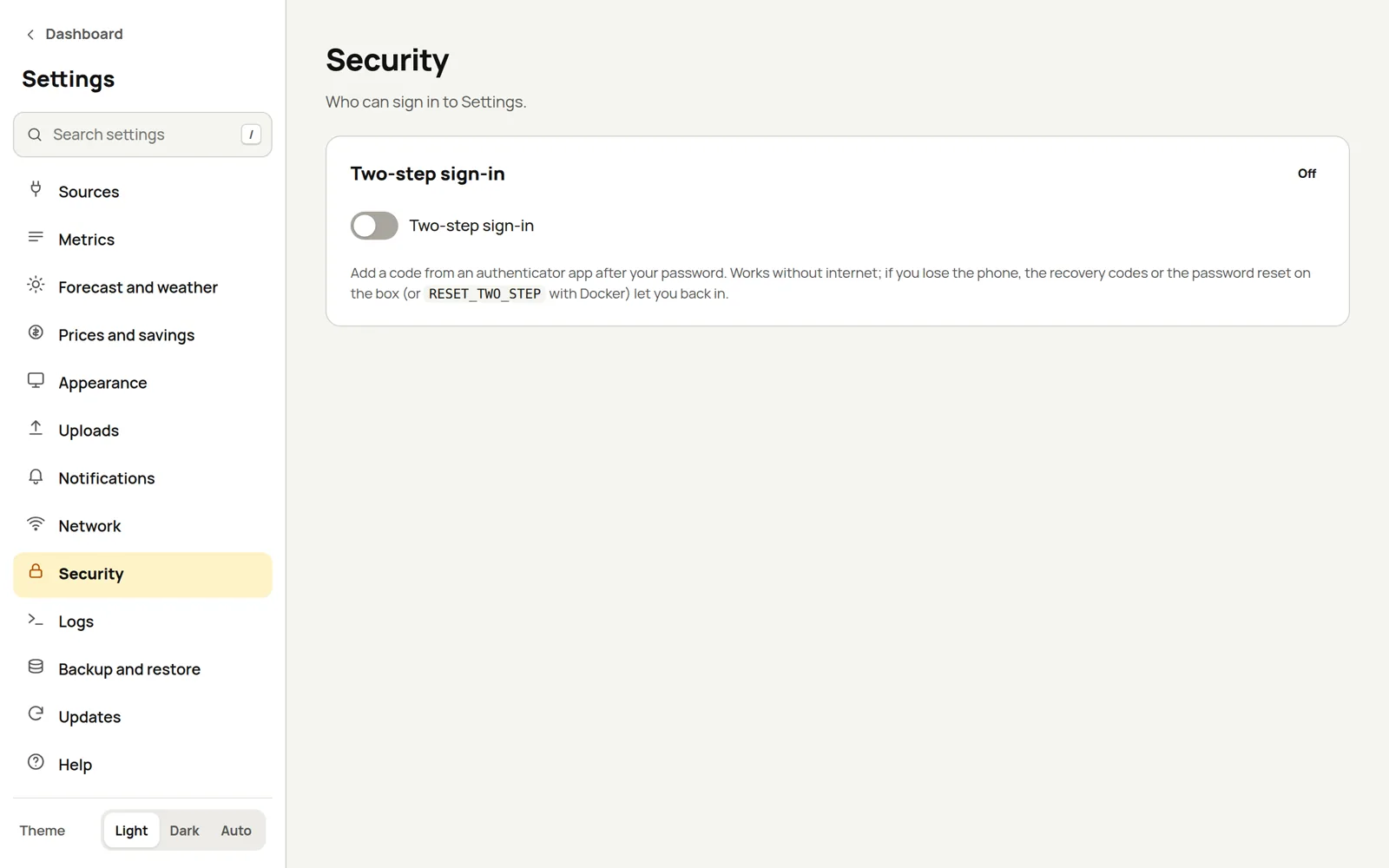
Turn on the switch and enter your password. Scan the QR code with your authenticator app, then type in the code it shows.
Save the 10 recovery codes. They're only shown once. If you ever lose your phone, each code gets you in one time. New recovery codes replaces the whole set.
From now on, you sign in with your password and then a code (or a recovery code). Turning two-step sign-in off, or making new recovery codes, asks for both your password and a current code.
A few things worth knowing:
- Codes only match if the box's clock is within about a minute of your phone's. A box without internet can slowly drift; if a code is refused, the sign-in page shows you the box's time, and a recovery code always works.
- Each code works only once, so nobody can reuse one they've seen, and after five wrong codes you're sent back to the password.
- The setting is kept in
data/two-step.json, with its secret encrypted by the app's encryption key. A database backup doesn't include it, so a restored box starts with two-step sign-in off.
Locked out of two-step sign-in
Resetting the admin password also switches two-step sign-in off, so a lost phone never locks you out for good.
- On EpilykosOS, put a
dashboard-password.txtfile on the boot drive, or runsudo epilykos-reset-passwordon the console. See Password and factory reset. - On Docker, use the
RESET_TWO_STEPswitch:
In docker-compose.yaml, uncomment the environment: line if it's still commented out, and add
- RESET_TWO_STEP=true under it. Uncomment only that line and the one you add: the commented lines
below environment: (the time zone and, in newer compose files, the admin password) stay off
unless you want them.
Run docker compose up -d, then sign in with just your password.
Remove the RESET_TWO_STEP line again (and comment out environment: if nothing else is left under
it), then run docker compose up -d once more. Until you do, two-step sign-in is switched off every
time Epilykos starts.
Saved passwords and tokens
The passwords and tokens you save in Settings (for Solcast, MQTT, Home Assistant, Tuya, notification
channels, the Cloudflare tunnel and so on) are stored encrypted, with a key kept in
data/encryption-key. To move them to another box, see
Backup and restore.
Last updated on