

Uploads (PVOutput)
Send your solar figures to PVOutput.org.
Appearance
Branding, background, and which dashboard opens on each device.
Notifications
Alerts and reports by push, Telegram, Discord, ntfy or webhook.
Settings → Uploads can send your figures to PVOutput.org, a free site where people share and compare how their solar systems are doing.
Connect your PVOutput system
In PVOutput, open Settings, switch on API Access, and make a note of your API Key and your system's System Id.
In Epilykos, switch on Upload to PVOutput and enter the API key and System ID.
Press Test connection. It also fills in the Time zone for you; if it doesn't, type it in, for
example Africa/Lagos.
Choose Upload every 5, 10 or 15 minutes to match your PVOutput system's status interval, and enter the System size in watts.
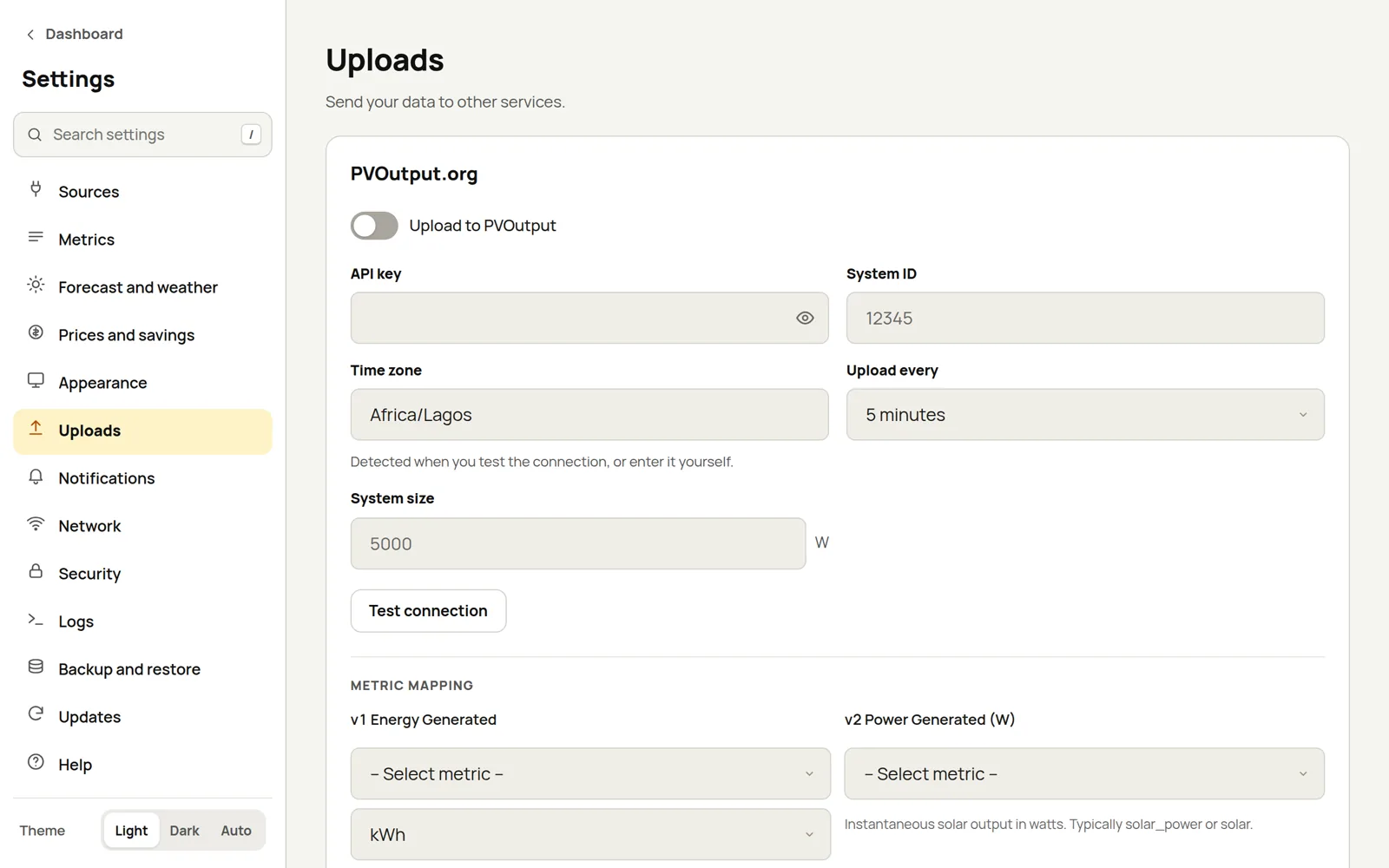
Metric mapping
Pick which Epilykos metric to send for each PVOutput value:
| PVOutput value | What to choose |
|---|---|
| v1 Energy Generated | The solar energy produced so far today, for example daily_solar_kwh. |
| v2 Power Generated (W) | Solar power in watts, for example solar_power. |
| v3 Energy Consumed | The energy used so far today, for example daily_consumption. |
| v4 Power Consumed (W) | The house's power use in watts, for example load_power. |
| v5 Temperature (°C) | The outdoor or inverter temperature. |
| v6 Voltage (V) | The grid or mains voltage. |
Epilykos works in kWh; the unit selector next to v1 and v3 decides what PVOutput receives.
Upload mode
- Cumulative (c1) sends running totals for the day. That's right for most inverters.
- Net data (n) treats v2 and v4 as net export and import. Only choose it if your inverter reports net-metering values.
Upload queue and backfill
If an upload fails, because the internet is down or PVOutput is busy, it waits in the Upload queue and is sent later. View queue shows what's waiting, and Run backfill looks for gaps and fills them in. On a free PVOutput account each reading is sent separately, so a big backlog can take several hours to clear.
PVOutput alerts
PVOutput can send its notifications on to Epilykos. Enter a Webhook URL such as
https://energy.example.com/api/pvoutput/webhook here, and use the same address as the notification
callback in your PVOutput settings. It has to be a public address that PVOutput's servers can reach;
see Network and remote access.
That address only accepts calls while uploads are switched on, only for your own system ID, and at most 10 a minute. Alerts arrive as the PVOutput alert received event, which you can pass on in Notifications.
Last updated on